
Help
Running your app
Everything you need to set up your guide app, get it to your guests and keep it up to date. The words in bold match the buttons in your editor.
1. Your app in two minutes
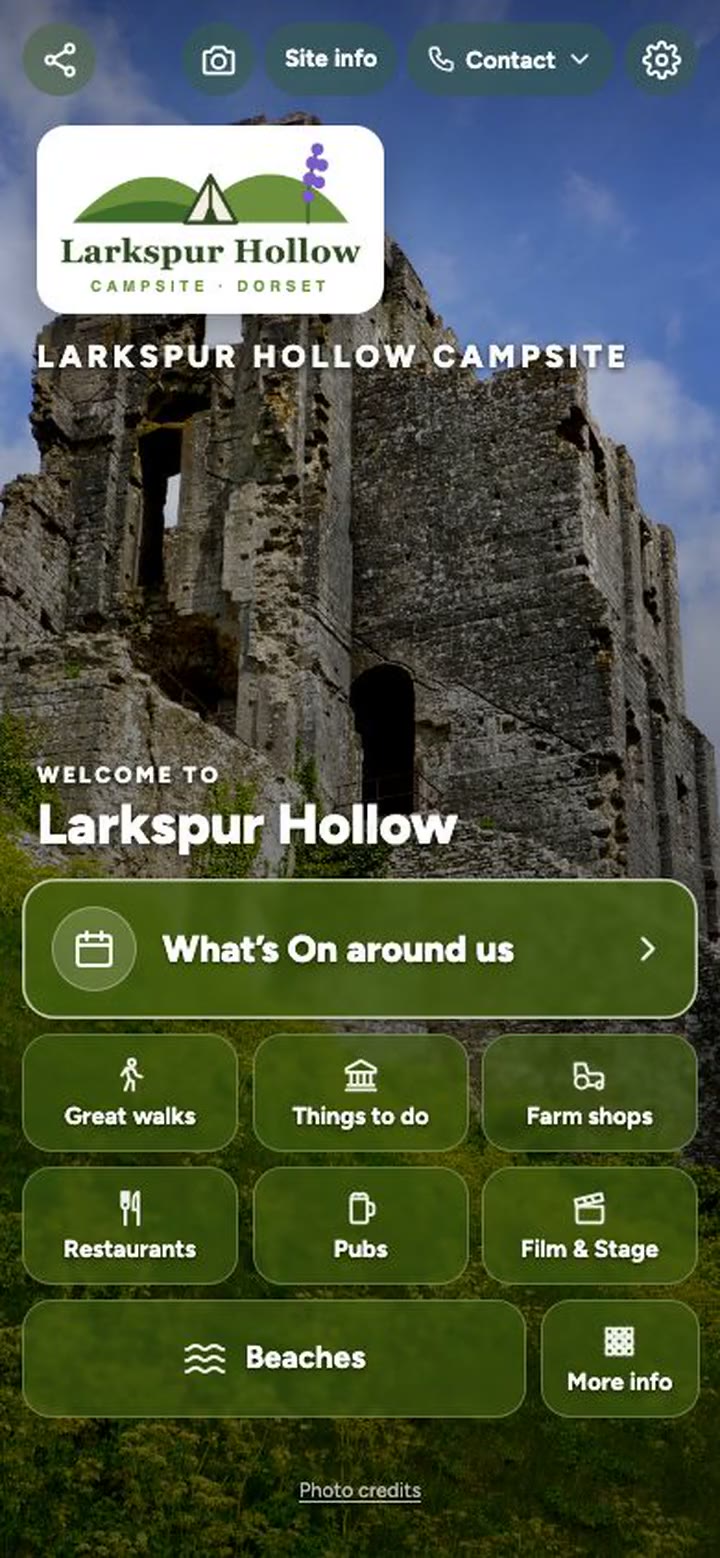
- Nothing to download. Guests open your guide from your link or QR code, straight in their phone’s browser.
- Guests who use the browser can add your guide to their home screen. It then opens like an app, even with no signal.
- The home screen shows your logo, your photo and big buttons for the things guests want most.
- Local listings (pubs, places to eat, shops, walks, attractions, beaches and more) are found automatically around you, with distances, opening times, websites and Google reviews. They’re checked again every month, and you can search again any time.
- What’s On shows local events for the next 3 months, read from local websites every two weeks. Guests can add events too.
- Your own pages hold things only you know: Wi-Fi, arriving and leaving, rules, bin days, menus. You write these.
- Directions: any place in the app opens in the guest’s choice of Apple Maps, Google Maps or Waze. They can change it on the app’s Contact tab.
2. Signing in
- Use the password link in your welcome email to choose a password. The link works for 7 days.
- After that, sign in at localarea.app/admin with your email and password.
- Forgotten your password? Use Forgot your password? on the sign-in page and we’ll email you a new link. It works for one hour.
- Everything you do in the editor saves by itself. Press View app at the top to see a proof of your app as guests see it.
3. Setting up: Site details
Open Site details and work down the steps. The phone picture beside them shows each change straight away.
5. Guide pages: what’s in your app
- Change a page: open Guide pages, click the page, and change the words or photos.
- Add a page: under Add a page, give it a name (for example “Wi-Fi”, “Bin days” or “Our farm shop”) and press Add page. New pages start hidden: tick Show in the app when it’s ready.
- Home screen buttons: the pages under Home page listings are the buttons on your home screen; drag pages in or out, and into the order you want.
- Sections: group pages under headings (Add a section, then Add section) and put them in the order you want.
- Local listings fill themselves in. Press Remove from the app on any place you don’t want (it goes to a Removed list, and you can bring it back), Pin to the top your favourites, pick replacements from the suggestions with Add to the app, or add your own under Add your own: a favourite café, a farm shop, a friend’s business.
- Your walking list: a page only you fill in, of places within walking distance. Under Add a place, find it on the map (or give its postcode), add a few words and a photo of your own, and press Add to the app.
- What’s On: fills itself in every two weeks. Add your own events, add a local website we should read, or hide any event with Hide from the app.
6. Photos sent in by guests
Guests can send you their photos from the app. They arrive under Photos sent in (a red number shows new ones), and you can have an email when one arrives. Nothing appears in the app by itself: to show one, save it and add it to a photo gallery page.
7. Mailing list
Guests can join your mailing list from the app. You’ll find them under Mailing list, and you can press Download (CSV) to use the list with your own email system.
8. Stats and reports
Stats & reports shows how many people use your app, how they found it (QR code, link or message), what they look at and which local places they tap on. Use it to see which poster or message works best. Choose a period to compare with the one before, open a ready-made Standard report to print or save as a PDF, or download the figures as a spreadsheet. Visits by robots (search engines and the like) are left out.
9. Account: paying, languages and staff
- Your plan: your trial or paid dates, and the button to pay (£75 for the year, by card). It renews by itself each year; change your card or cancel any time with Change card, invoices or cancel. Have a discount code? Enter it before paying.
- Languages for your guests: add languages and the whole app is translated automatically. A phone set to French opens it in French. Translations aren’t checked by a person, so English is always the original. Languages are free to try during your trial and are added to your yearly price when you pay.
- Who can sign in: lists who can sign in to your editor. To add or remove someone, just email us.
- Change your password.
10. Questions people ask
- Do guests need to download anything?
- No. It opens from your link or QR code, and they can add it to their home screen if they like.
- Does it cost guests anything?
- No, it’s free for them.
- How quickly do my changes show?
- Straight away. Guests see them the next time they open your guide.
- A listing is wrong or has closed.
- Press Remove from the app on its page in Guide pages, and tell us so we can correct it at the source.
- What happens when my trial ends?
- The free trial lasts 7 days. When it ends, the app pauses for guests and everything you’ve set up is kept. Pay under Account and it switches straight back on.
- Who do I contact?
- Reply to any of our emails and we’ll help.